Set up time off and approve requests
8 Jul 2026 · 2 min read
Set allowances once, then approve holiday and see who is off, all in a few taps.
Empliora handles holiday and other leave end to end. Staff request time off from their app, you approve it, and everyone can see who is away. Set the policy once and it runs itself.
- 1
Set your leave policy
Open Time off and go to Settings. Set the standard holiday allowance, when your leave year starts and how part time allowances are worked out. Empliora does the pro rata maths for you.
- 2
Let staff request leave
Once a policy is set, staff request time off from their app. They see their remaining balance before they ask, so requests are realistic and you get fewer questions.
- 3
Approve or decline
Requests land under Requests and approvals. Approve or decline with one tap. The person is told straight away and their balance updates automatically.
- 4
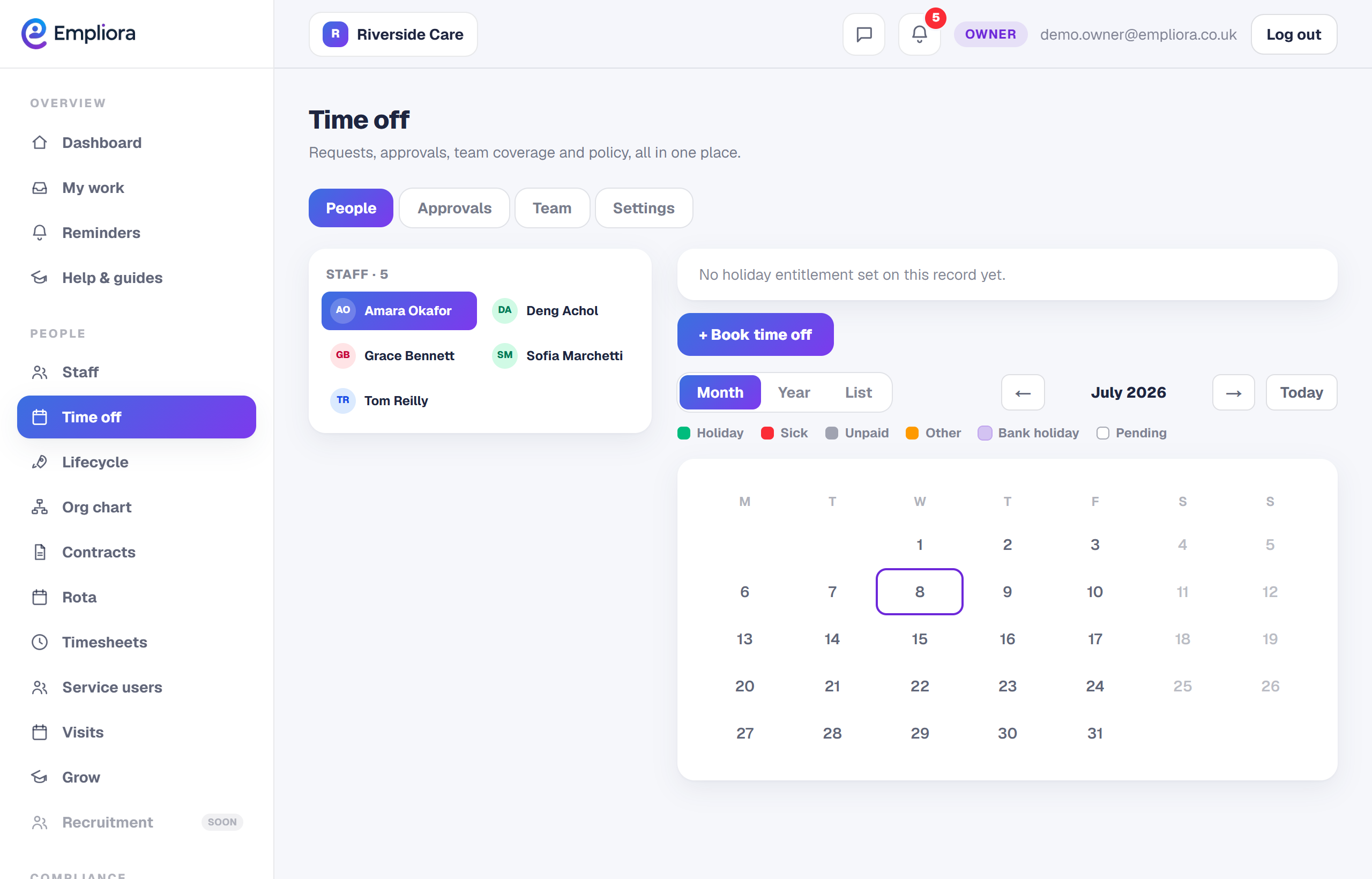
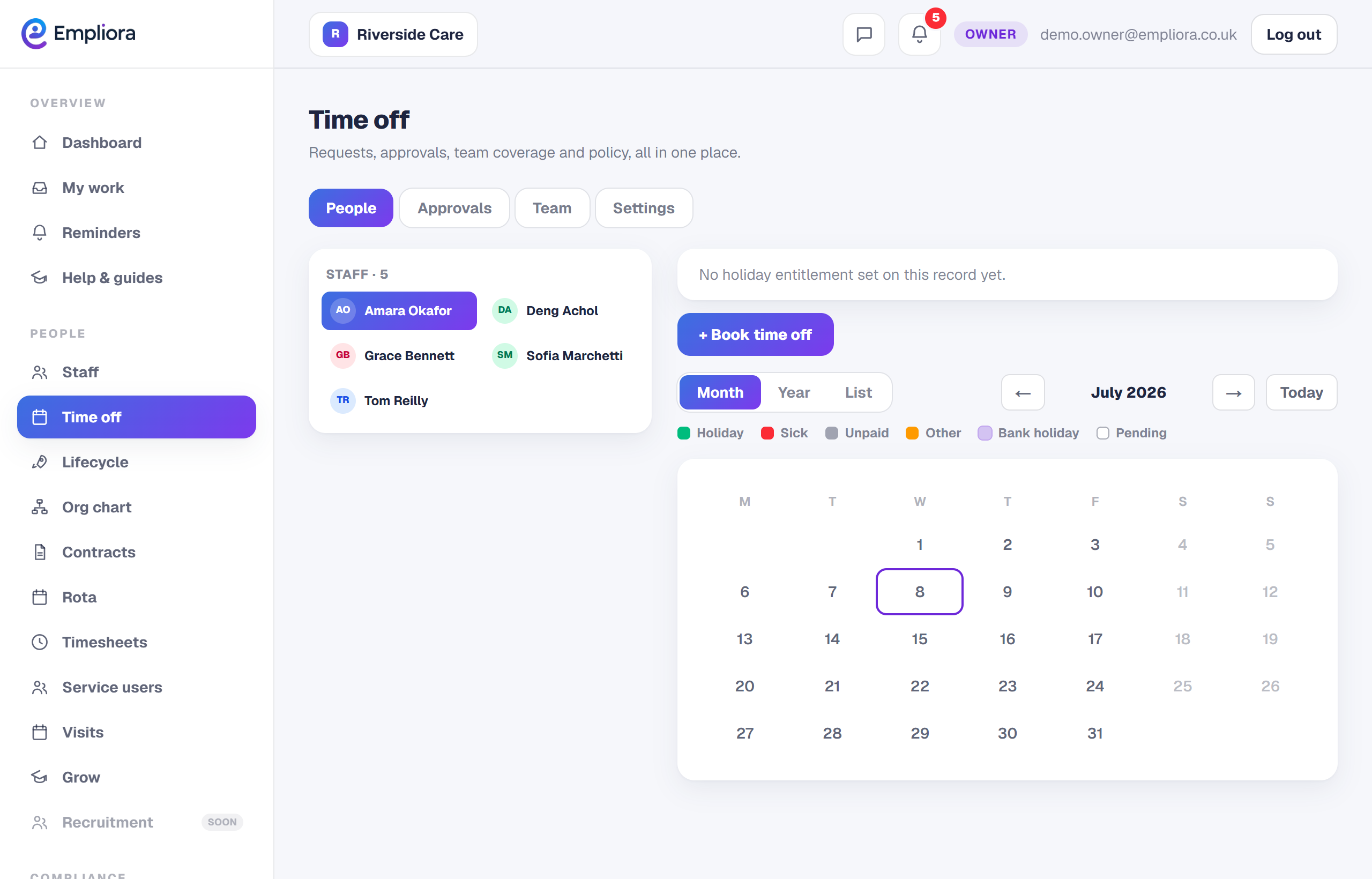
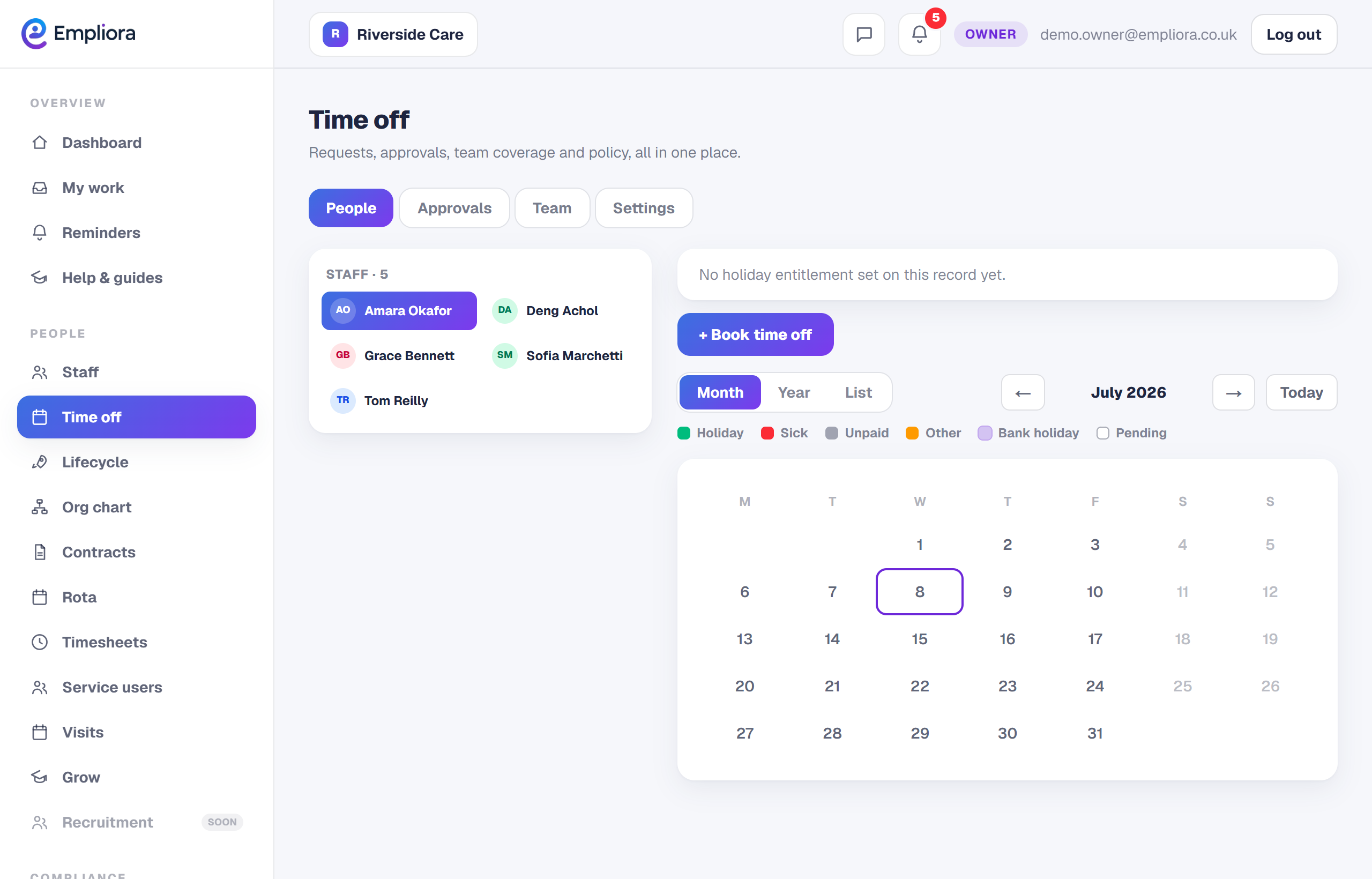
Check coverage before you say yes
The coverage calendar shows who else is already off, so you do not leave a day short handed. Use the Today, Month and Year views to plan ahead. Pending requests also show on your dashboard, so nothing sits waiting.